Getting Started
Can I Create a QR Code Without a Website?
Create a useful QR code even if you do not own a website. Compare stored text, contact details and links to pages hosted by other services.
Quick answer
Yes. A QR code can store text or structured contact information directly, so you do not need your own website. You can also encode a public URL hosted by another service. Choose the content type around what someone should receive or do after scanning.
In this article
What should the code do after scanning?
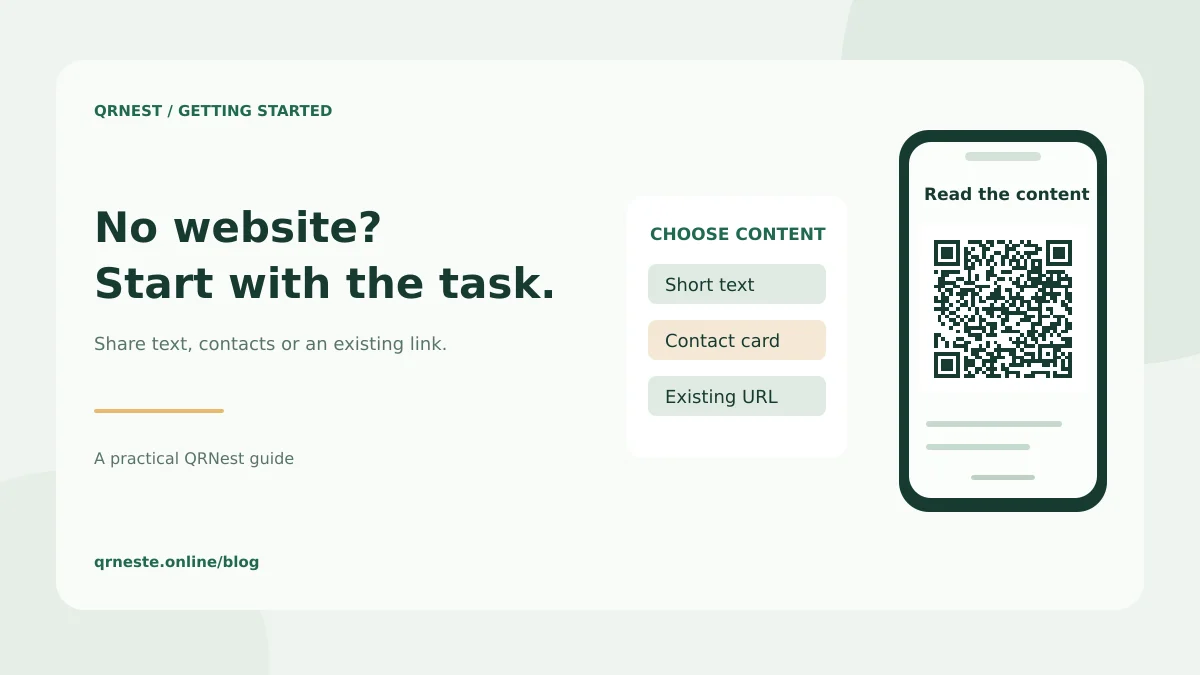
Start with the reader's task. A short instruction can be stored as text. A contact card can carry a name, phone number and email address. A public registration form or portfolio can be reached through its existing URL, even when another organization hosts the page. Owning a domain and using a QR code are separate decisions.
For example, a craft seller at a market might share contact details rather than create a full shop. An instructor could distribute a short room-access instruction as text. An event organizer might use a registration page supplied by the venue. Each choice solves a different problem and should be tested with the phones visitors are likely to use.
Should you store the information or link to it?
Directly stored information travels with the image. Changing those details later requires a new pattern. A linked page lives elsewhere and needs its host to remain available. You may be able to update the page without changing its URL, depending on the service and your access to it.
DENSO WAVE's capacity guidance explains why larger payloads need more modules. Keep directly stored content brief. A full document or photo collection usually belongs on a suitable host, with a code pointing to its public sharing page. A QR image is not a substitute for document storage.
How do you make the code in QRNest?
- Choose Text for a short message, vCard for contact details, or URL for an existing online page.
- Enter only the information you intend to distribute.
- Generate the code and download the actual file you will use.
- Scan the downloaded image with another phone.
- Check the displayed information and complete the intended action.
QRNest's contact and text tools do not require you to publish a website. Its URL tool needs an address that already works; it does not create or host the destination page. A scanner may offer to open a link or save a contact, but the exact presentation depends on the phone and scanning app.
What should you check on a hosted page?
Open the link in a signed-out browser before sharing it publicly. Confirm that visitors can access the information without your account. If access is intentionally restricted, explain that requirement beside the code. Avoid encoding a temporary preview link when a stable public address is available.
Print a brief purpose statement and an alternative contact method where practical. A visitor should understand what the code offers before scanning. For more detail, see which QR content works offline and what to include in a vCard code. Choose a manageable first step, and only add a website when the audience's task calls for one.
Put this guide into practice
Generate a static QR code for your own verified text or URL, then test the downloaded result.
Create a text QR code ↗Official sources and further reading
This guide describes the current QRNest tools. Destination services and other apps may behave differently. Report an error or suggest an update.