Privacy and Access
Can I Password Protect a QR Code?
Learn where QR password protection actually happens, how to secure the destination and how to test that a direct file link cannot bypass the login.
Quick answer
You can point a QR code to password-protected content. For an ordinary static code, the protection belongs on the destination website or file service; scanning still reveals the stored URL. QRNest does not add a password gate, so set up and test the destination permissions separately.
In this article
Where does the password check happen?
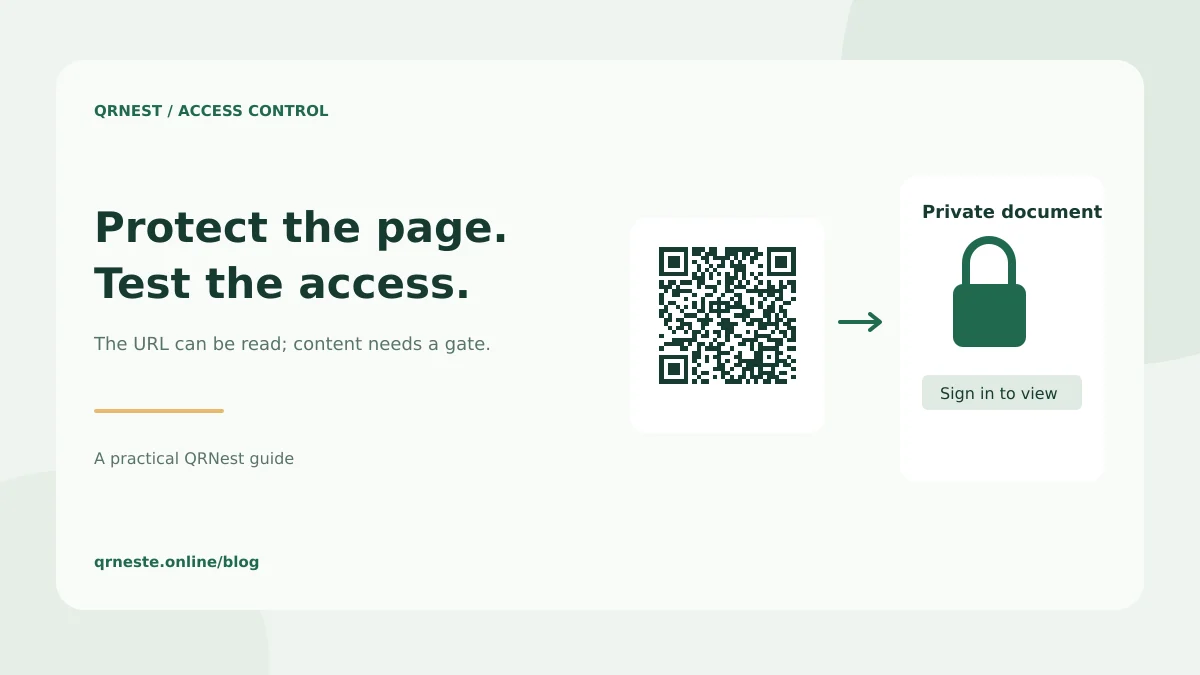
A normal URL QR code contains an address. The scanner reads that address and the browser requests the page. The website then decides whether the visitor is allowed to see its content. Printing a lock icon on the image, using an obscure URL or hiding a page from search does not establish access control.
Some dynamic providers offer an intermediate password screen. Check what that screen protects: if the final document remains publicly accessible through its direct link, someone who learns that link can go around the intermediate page. For documents that need restricted access, protect the document itself as well as any page linking to it.
How do you create a code for restricted content?
- Choose a website or document service that supports the permissions your audience needs.
- Set the content to restricted access and add the intended users or authentication method.
- Copy the stable page URL without session tokens, passwords or temporary download credentials.
- Enter that URL in the QRNest URL generator and download the image.
- Test both an authorized visit and a signed-out visit before distributing the code.
A staff handbook illustrates the difference. Put the handbook in the organization's authenticated system, then encode its stable entry URL. Staff sign in using the system's existing process. A visitor who photographs the poster can learn the entry address, but the system should withhold the handbook unless that visitor has permission.
How do you test for an accidental bypass?
Open the QR destination in a private browser window where you are not signed in. Confirm that the content stays unavailable. Then test the file's direct URL in the same signed-out state. A protected landing page that embeds a public PDF can look secure during a normal signed-in test while leaving the file exposed.
Finally, use an authorized account and complete the intended action. Check the experience on a phone, including login redirects and returning to the requested resource. Write down who controls permissions and how access will be removed when a person's role changes. A shared password may be forwarded; individual accounts are easier to revoke independently.
What should you avoid putting inside the pattern?
Do not encode the access password beside the protected URL or place a long-lived credential in its query string. A photograph can preserve that information beyond your intended audience. Prefer a stable entry point with authentication handled by the hosting system. Sharing a Wi-Fi password through a Wi-Fi QR is a different use case and does not create a private website.
For technical background, MDN explains HTTP authentication and the role of server access checks. If using HTTP Basic authentication, HTTPS is essential because Basic's credential encoding is not encryption. Choose the existing secure sharing controls of your document platform rather than inventing a login system for a single QR project.
Put this guide into practice
Generate a static QR code for your own verified text or URL, then test the downloaded result.
Create a URL QR code ↗Official sources and further reading
This guide describes the current QRNest tools. Destination services and other apps may behave differently. Report an error or suggest an update.