Design Questions
Can QR Codes Be Colored?
Learn how to choose QR code colors, preserve contrast and test the finished image on screens and printed materials before sharing it.
Quick answer
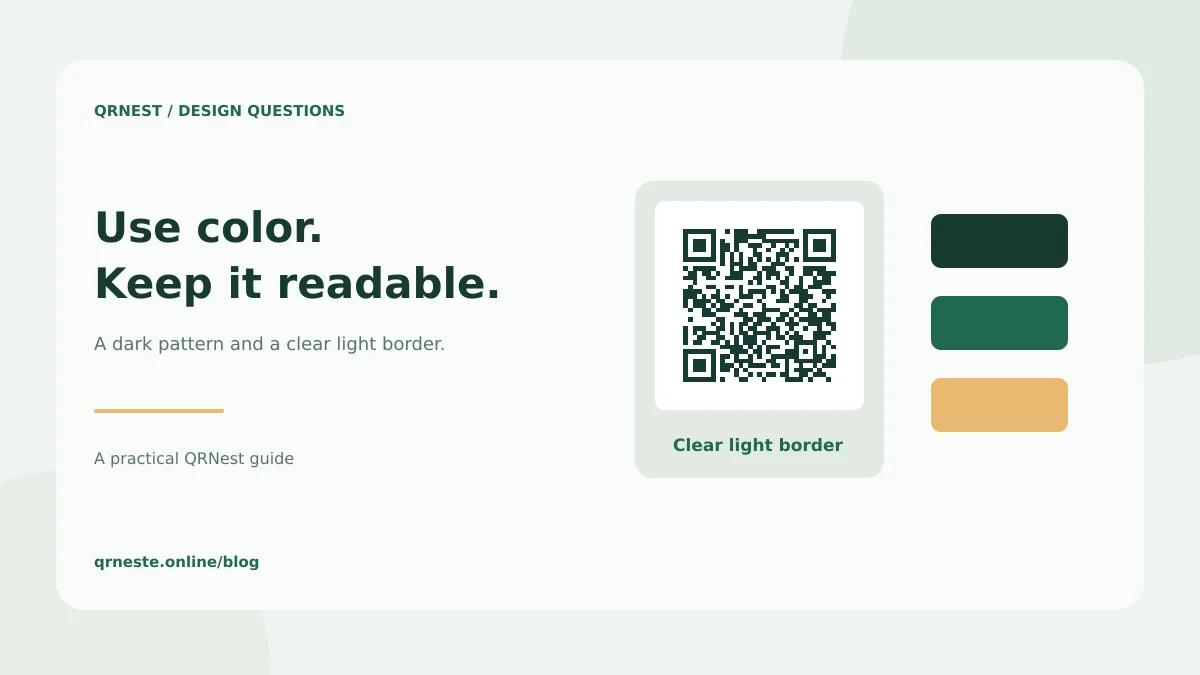
Yes. A QR code can use colors, provided the pattern remains readable. A dark code on a light, plain background is a dependable starting point. Preserve the clear border, avoid visual effects that obscure modules, and test the final exported and printed design.
In this article
Which colors should you start with?
Start with the darkest useful color in your brand palette and a light background. Dark green on white can suit a natural brand; dark navy on a pale neutral can suit a professional service. Treat these as design starting points, not guarantees of readability. A color pair that looks attractive at full size may become unclear on a small label.
Keep the background behind the entire symbol consistent. A transparent image placed over a photograph may gain dark patches that interfere with the pattern. If the code will appear on several materials, include its own light backing panel so the surroundings do not unexpectedly change its appearance.
What parts of the design need protection?
The small squares and the larger locating patterns need to remain distinct. Avoid stretching the symbol into a rectangle, softening its edges with blur or placing text over its modules. Color is one design choice; distortion and decoration introduce additional variables.
DENSO WAVE's generation guidance warns that image processing and decorated patterns can make codes unreadable. Its margin guidance specifies an empty border four modules wide on every side. Keep that border clear when adding a colored frame, caption or background panel.
How do you apply colors in QRNest?
- Enter your final content and choose the appropriate QR type.
- Set Code color to a dark shade.
- Set Background to a plain light shade.
- Generate the image and download it at a suitable size.
- Place the downloaded file into the final layout without stretching or cropping it.
Begin with simple colors before adding a logo. If scanning becomes unreliable, return to a plain dark-on-white version of the same content. Change one design choice at a time so you can tell whether the color, size, background or decoration caused the difference.
How should you test the final design?
Print a sample on the intended material and inspect it under the lighting where it will be used. A glossy table card, a fabric label and a phone screen create different conditions. Try more than one phone and scan from the expected distance. Verify the destination as well as whether the camera recognizes the image.
Do not rely on an attractive mockup or a single scan of the original export. The print process, paper color and later resizing can alter the result. Keep a working plain version with the project files so it is easy to replace an unreliable design. Our logo checklist covers combined customization, while the printing guide explains export choices. Use color to support recognition while keeping the scanning task straightforward.
Put this guide into practice
Generate a static QR code for your own verified text or URL, then test the downloaded result.
Create a URL QR code ↗Official sources and further reading
This guide describes the current QRNest tools. Destination services and other apps may behave differently. Report an error or suggest an update.