Business operations
QR Codes for Inventory: Start with Reliable Item IDs
Plan a small internal inventory QR workflow with stable IDs, clear scan actions and testable stock records. Understand what a QR generator does not manage.
Quick answer
For a small internal inventory workflow, a QR code can contain a stable item identifier or a link to its record. Your inventory software or documented process must interpret the scan and record any stock change; the image alone does not update quantities.
In this article
Decide what one label identifies
Before making codes, choose whether each label represents a product type, an individual asset, a storage location or a batch. Those are different records. A product identifier shared by a box of identical parts cannot by itself identify which single part was checked out.
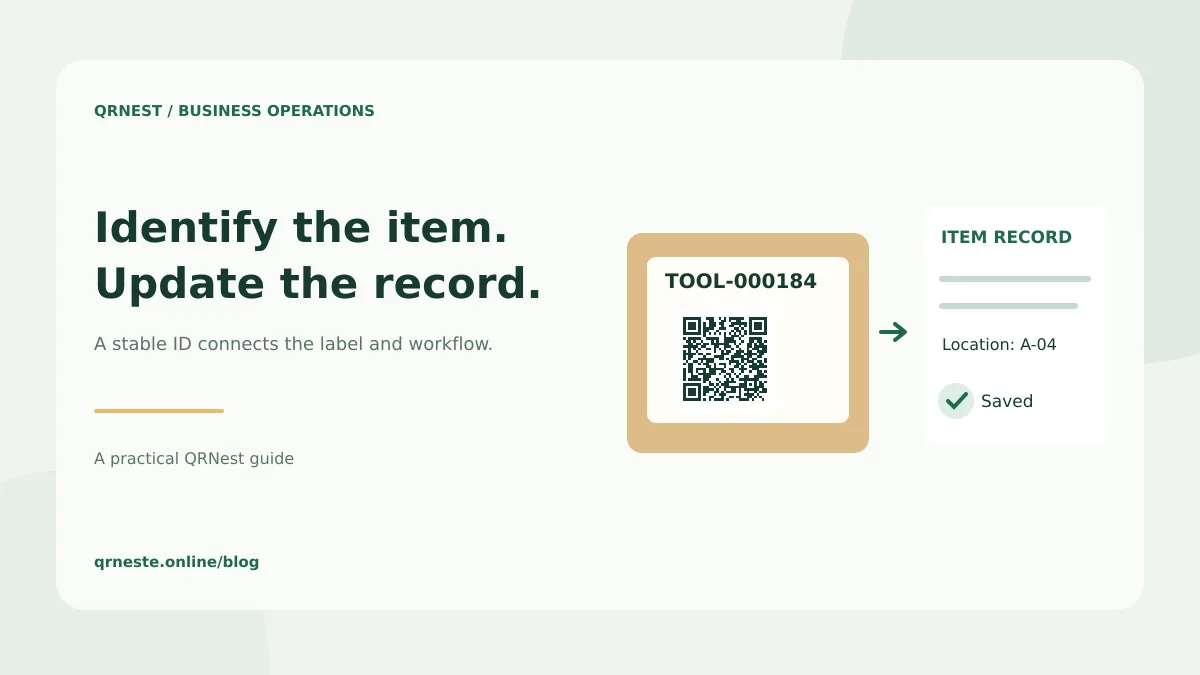
For example, a workshop might assign TOOL-000184 to one drill and BIN-A-04 to a shelf location. The tool's identifier should remain stable when it moves. Its current location belongs in the record that your workflow maintains.
Choose plain text or a record link
| Encoded content | Useful when | What your workflow needs |
|---|---|---|
| A short item ID | A scanner enters identifiers into an internal app | A lookup that recognizes that exact ID |
| A record URL | Staff open a web-based record on a phone | Stable addresses and appropriate access controls |
| A location ID | Staff identify the destination of a stock move | A separate action that records the move |
Keep frequently changing data, such as quantity or current location, out of a permanent static label. If you encode “12 in stock,” the image will still say 12 after the inventory changes. Store changing facts in the record and make the label a dependable way to find it.
Define what happens after the scan
A camera displaying TOOL-000184 is not the same as checking out that tool. Decide which screen opens, who can edit the record and what confirms the transaction. Your process may ask for a quantity, a location or a staff confirmation before saving.
GS1 US's inventory overview discusses barcode-based inventory within broader inventory processes. The useful distinction is that identification and record management work together. A QR generator supplies a symbol; the surrounding system supplies the business operation.
Pilot the workflow before labeling everything
- Create a small sample of records with unique, stable identifiers.
- Generate a text QR code for an ID, or a website QR code for its record URL.
- Print the identifier in ordinary text alongside the code.
- Scan the label using the actual scanner, phone and software staff will use.
- Complete a sample stock movement or asset checkout in the intended system.
- Check the resulting record, including quantity, location and confirmation.
- Test a duplicate scan and an unknown ID to see how mistakes are handled.
Do not assume a spreadsheet will receive phone scans automatically. You may need a compatible scanner configured as keyboard input, an application or a separate integration. Document that setup so another team member can reproduce it.
Keep internal labels separate from trading standards
An identifier invented for your own workshop is not automatically a globally recognized retail identifier. If suppliers, retailers or logistics partners must read the labels, confirm their supported formats and identification rules. GS1's barcode standards overview explains standard identification contexts; QRNest does not issue GS1 identifiers or certify trading-partner compatibility.
For a private record URL, access control still applies after scanning. Avoid embedding passwords, access tokens or confidential stock details in a label that can be photographed. A code on an asset is easy to copy.
Common questions
Can QRNest create the inventory database?
No. It can generate a code for your text or existing URL. Records, permissions, stock calculations and transaction history belong in your inventory system.
Will a text code work without internet?
A compatible scanner may decode the ID locally. Looking up a remote record or saving a movement can still require a connection or an offline-capable inventory app.
Put this guide into practice
Generate a static QR code for your own verified text or URL, then test the downloaded result.
Create an item-ID QR code ↗Official sources and further reading
This guide describes the current QRNest tools. Destination services and other apps may behave differently. Report an error or suggest an update.