Forms and Feedback
How Do I Create a QR Code for a Google Form?
Publish your Google Form, copy the responder link and test its permissions before turning it into a QR code for feedback, surveys or sign-ups.
Quick answer
Publish the Google Form, copy its responder link and paste that link into the QRNest URL generator. Download the code and test it while signed out of the form owner’s account. The QR code opens the form; publishing, permissions and response collection remain controlled in Google Forms.
In this article
Which form link should you use?
Use the address intended for responders, rather than the editing screen you use to build the form. A code should take a participant to the questions they can answer, not ask them to request editor access. Before generating it, decide whether the form is public, organization-only or shared with specific people.
Google's publishing and sharing guide says a form must be published before responders can access it. It describes Copy responder link in Preview, Published or Share, and an optional shortened link after publication. Follow the options shown for your account; an organization may limit who can respond.
How do you turn that link into a QR code?
- Finish the questions and review the response settings.
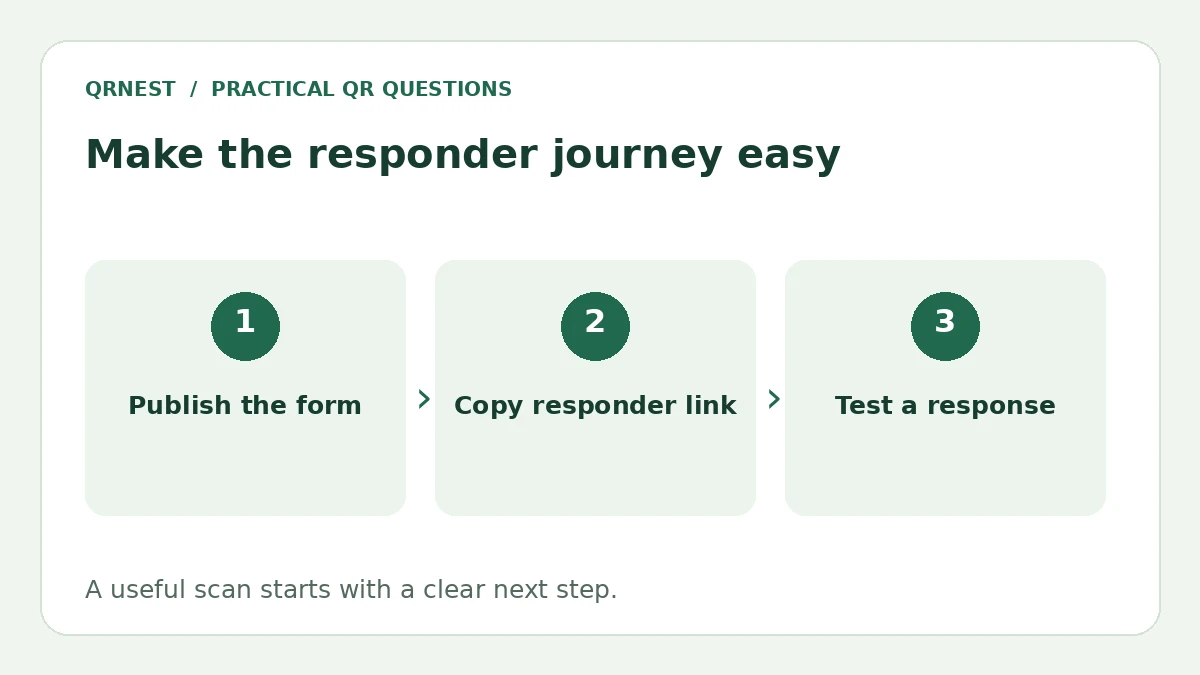
- Publish the form for the intended audience and copy its responder link.
- Open that link in a separate signed-out or appropriately authorized session.
- Paste it into the QRNest URL tool and generate the code.
- Download the image, scan it on a phone and submit a harmless test response.
- Check that the response arrived in the form owner's response view.
After testing, handle the test response according to your own record-keeping process. Do not use a real customer's private information to verify that a form works. Check confirmation text so participants understand whether their submission succeeded and what, if anything, happens next.
Why are some people asked to sign in?
A readable code cannot override a form's access rules. For example, Google's guide explains that limiting people to one response requires them to sign in to a Google Account. Other restrictions can come from the form's audience settings or the organization's policies.
Test the same situation your audience will encounter. A school form may intentionally require an institutional account; a public customer-feedback form may need a different setup. If sign-in is required, say so beside the code. Avoid advertising an anonymous, account-free survey unless you have verified that experience.
Can you edit or close the form after printing?
The static image continues containing the same URL. Changes to the questions, availability or audience happen in the hosted form. Keep the responder address stable where possible and scan the old printed code after making a significant change. Opening a form and successfully sending a response are separate checks.
For a recurring project, you may prefer a page on your own domain that explains the current survey and links to the appropriate form. That provides a place for a closing message or new round of questions, but it also adds a page to maintain. See our registration workflow guide for form-based sign-ups and accessibility guide for alternatives to scanning. Print a short purpose statement and readable fallback address so people know what information you are requesting before they begin.
Put this guide into practice
Create a static QR code for a verified destination, then test the downloaded image and the visitor experience.
Create a URL QR code ↗Official sources and further reading
This guide describes the current QRNest tools. Destination services and other apps may behave differently. Report an error or suggest an update.