QR Code Basics
What Happens When You Scan a QR Code?
Follow the steps from camera recognition to opening a link or saving a contact, and learn which actions still need a visitor’s choice.
Quick answer
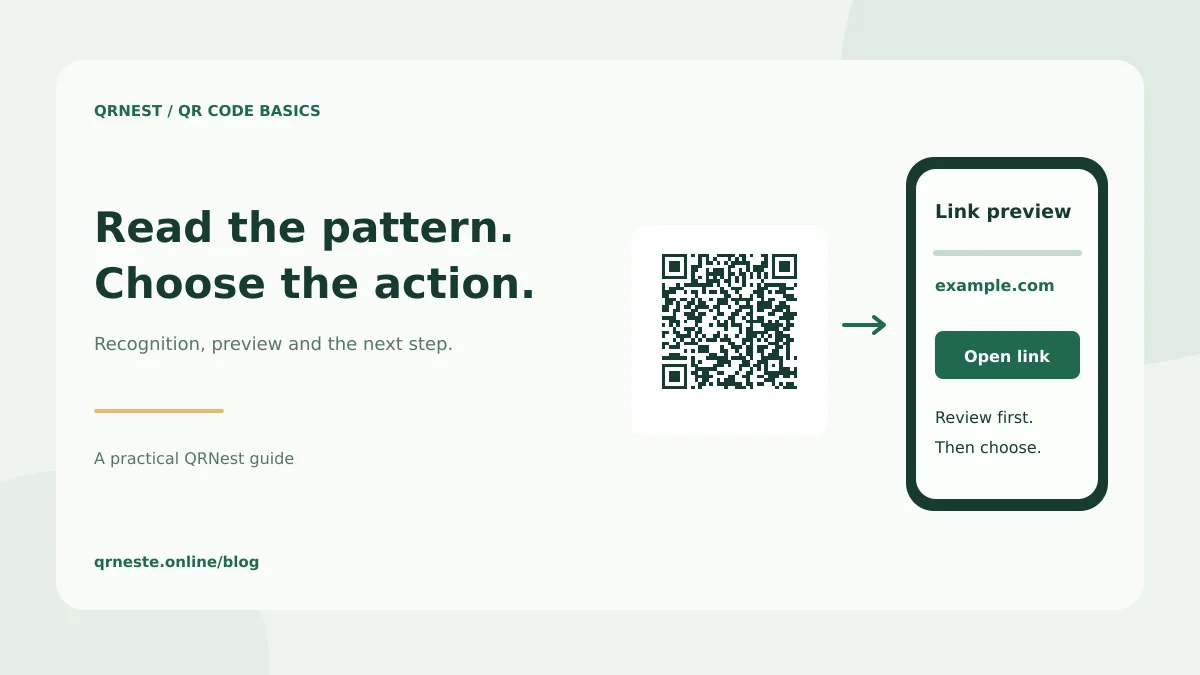
A QR reader recognizes the pattern and decodes its stored data. The phone or scanning app then decides how to present that content: for example, displaying text, offering a website link or preparing contact details. Reading the pattern and completing an action are separate steps.
In this article
What does the camera recognize?
A reader first has to locate and interpret the symbol in the camera view or supplied image. It needs enough detail to distinguish the pattern. The visible size, focus, contrast and clear space around the code all affect this step. A beautifully designed poster may still be difficult to scan if the code is tiny or obscured by reflections.
DENSO WAVE's module-size guidance explains the relationship between symbol size, printing and reading equipment. If the camera does not recognize anything, try better lighting, a different distance and a clear view before assuming the destination website is broken.
What information comes out of the pattern?
The decoder recovers the stored payload. That may be an ordinary web address, a short message or structured information intended for a compatible app. The reader does not automatically know whether an address is trustworthy simply because it could decode it. Recognizing a QR code confirms a readable pattern, not an endorsement of its contents.
A text code can display its message without loading a website. A URL code generally needs an internet connection to retrieve the linked page. A contact code may offer fields for saving an address-book entry. Different scanners can present the same payload differently, so test the action your audience needs rather than relying only on the first preview.
Does scanning immediately send or save something?
Do not design a workflow around automatic consent. An email or message link may prepare information in a suitable app, while the person still reviews and sends it. A contact preview is not the same as a confirmed address-book save. A link to registration is not a completed booking.
Tell people what to expect before they scan. Use a label such as View the menu, Open the registration form or Save our contact details. After scanning, the destination should confirm the business or task and make the next step easy to understand. Our landing-page guide covers that part of the experience.
How can you test the whole journey safely?
- Scan the final downloaded code from the intended layout.
- Review the decoded text or URL preview.
- Open the destination only when it matches what you expect.
- Complete the task with non-sensitive test information where possible.
- Check confirmation, cancellation and back navigation on a phone.
The FTC's QR scam guidance recommends checking unfamiliar URLs and being cautious about unexpected urgent requests. For a code you publish, provide a recognizable domain and another route to the information. For a code you encounter, pause if its destination or request differs from the printed promise. Successful scanning is the beginning of the interaction; the website or app controls what happens next.
Put this guide into practice
Generate a static QR code for your own verified text or URL, then test the downloaded result.
Create a URL QR code ↗Official sources and further reading
This guide describes the current QRNest tools. Destination services and other apps may behave differently. Report an error or suggest an update.